Artificial Intelligence
Claude for Small Business: Safe and Simple

Introduction
We recently ran a webinar on setting up Claude Team for small businesses. Here’s the short version, for anyone who wants the plan but couldn’t join us.
What’s Claude Team?
Claude isn’t one product. There’s Free, Pro, and Max for individuals, and Team and Enterprise for companies.
Team gets you everything in an individual account (Claude Code, Cowork, projects, a 200k context window) plus the things that matter for a company: admin tools and billing, SSO and role-based access, connectors to things like We Google Drive, Gmail, Calendar, GitHub, Microsoft 365, and Slack, spend controls, and mixed seat types so power users get Premium and everyone else gets Standard. It currently runs 2 to 150 seats per org.
Is It Truly Safe?
Short answer: safer, but only if you’re on the right plan and set it up well. That’s the whole point of rolling out Team instead of letting people bring their own personal accounts.
On Free, Pro, or Max, training is opt-out rather than off. If you leave it on, chats can be retained for up to five years with no company oversight, and if you opt out, retention is about 30 days. The scary thing is that once you hit submit, you can’t go back and undo.
Your data is now available for Anthropic to train models with.
On Team, your data is never used to train Anthropic’s models, retention defaults to 30 days, and admins get centralized control over the organization.
Enterprise takes that further, with retention configurable down to zero.
We believe the real safety comes from three layers working together: what admins lock down, the policy you write, and how well the people using it are trained.
Skip any one of the three and the other two don’t hold up on their own.
Setting It Up As An Admin
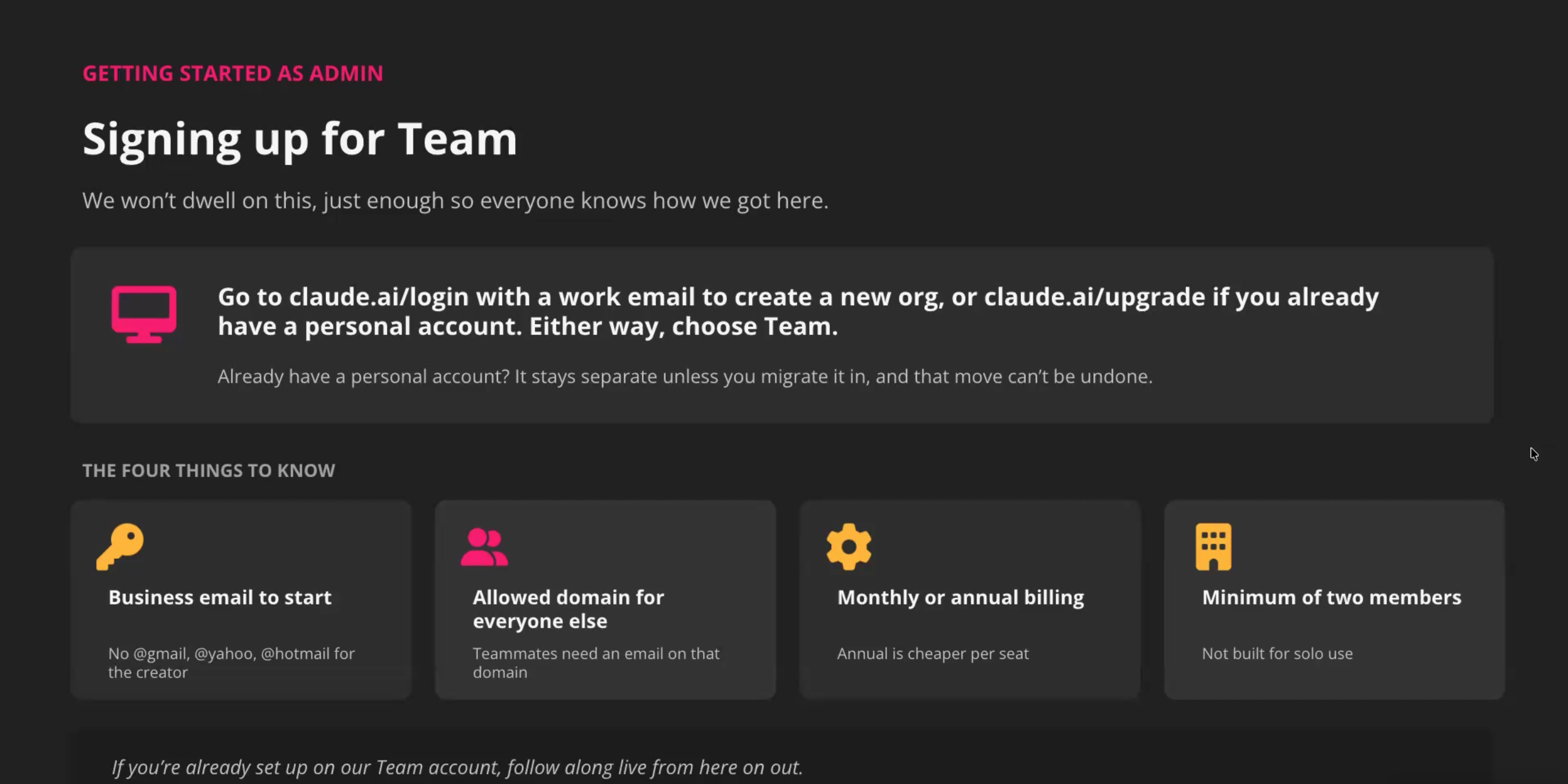
Getting a Team account running only takes a few things to know upfront. Creating the org needs a work email (no @gmail, @yahoo, or @hotmail for the creator), teammates need an email on that same allowed domain, billing can be monthly or annual (annual is cheaper per seat), and you need at least two members: Team isn’t built for solo use.
A work email at claude.ai/login creates a brand new org; claude.ai/upgrade is for anyone converting an existing personal account.
Once the org exists, there’s a handful of settings worth configuring before anyone else logs in, spread across a few tabs: organization, access, usage, data and privacy, and capabilities.
We dive deeper into these settings during the webinar, but let’s highlight a few.
Organization Settings
This is where org-wide instructions live. Be very careful: whatever you write here applies to every conversation, for everyone, in every role. Add a marketing tone in there and your engineers and sales team inherit it too. Be intentional about what goes in this box.
Single sign on (SSO) is one of the most important features to set up, but it needs your domain registered first. Once your domain is on file, you can require SSO and turn on just-in-time provisioning, so anyone logging in with a work email gets an account automatically instead of being prompted to spin up a personal one.
We highly recommend requiring SSO to avoid users inadvertently creating extra accounts with their business emails. This can cause confusion.
Another part of this is to also restrict organization creation, you don’t want users setting up new organizations with domain emails that are not approved. If someone already did before you locked this down, there’s a merge organizations feature to fold that account back into the real one.
Data and Privacy Settings
Five toggles live here, all turned on out of the box. Two are plain defaults and low-risk: rating Claude’s answers, and coarse location metadata.
The other three are set by the admin, meaning you’re the one deciding, and they’re worth a second look: sharing a chat with a coworker, sharing a chat that used a connector, and letting anyone in the org see and start chats in public projects.
A shared chat never exposes the underlying document, only Claude’s response, but that response can still carry sensitive information.
Say someone in HR asks Claude to summarize payroll numbers and shares that chat: the coworker never sees the spreadsheet, but they do see the summary. Leaving these on is fine for most teams, just make sure everyone knows what shouldn’t end up in a shared chat in the first place.
Capabilities
This tab covers what Claude can reach outside a conversation, and everything on it ships turned on. Under data sources, web search is set by admin, while letting Claude pull in maps and images and letting it search your own connected knowledge bases are both plain defaults.
Under visuals, letting Claude build artifacts from external data is set by the admin, generating charts and diagrams inline is a default.
Code execution is a default too. It’s what lets Claude run code on a server to build docs, spreadsheets, and reports. The one actually worth understanding is network egress, also on by default.
It’s what lets Claude install outside packages for advanced data analysis or custom visualizations, and it comes scoped to a domain allowlist that only covers package managers unless you add more.
That allowlist is your real safety net, so don’t widen it past what your team needs, and keep an eye on chats that use it.
Controlling Skills
Every toggle here is on by default, which is worth reviewing before your team starts building their own. Anthropic’s own warning is right on the settings page.
Skills can contain executable code, so treat an unfamiliar one like an unfamiliar email attachment. Turning off “user-created skills” locks the team to only what an admin has explicitly added, nothing homemade and nothing pulled in from outside.
The “organization skills” section is the trusted shelf for that, the company-wide, vetted version of the reusable instructions we mentioned above.
Controlling Connectors
Connectors are a layer that acts as an intermediary between Claude and other tools, as Slack, Jira, GitHub, or even your own MCP server.
Here you need to pay attention to two facts: first, once you accept Slack, for example, it will be enabled for the entire Team, but it still respects Slack’s own channel permissions: you won’t see information for channels you don’t have access to.
Secondly, there is an important toggle that you want to keep ON, regarding adding a limitation on who can install the desktop extension; sometimes people get too excited, or in the middle of a conversation, Claude asks for access to things, and it is quite easy to click Enter and keep going.
Controlling the Plugin Marketplace
A plugin is a combination of skills and connectors, so you need to be aware of its surroundings, given that here you have the skill instructions which tell Claude directly a specialized way to do something, and the connector on the other side which gives it access to the external data.
Given this context, here we have more granular control of plugin access. You can give plugin access on a per-user basis, from verified sources (as Anthropic themselves) or even external sources.
The plugins listed by default all come from verified sources, so Anthropic and its partners are already vetted. External sources are a different story: anyone can build a plugin and share it, so treat those with the same review and controls you’d use for an unfamiliar skill or connector before turning them on for your team.
Safe AI Usage Policy
Admin settings protect the organization. A written policy protects the people using it. Without one, everyone makes their own call on what’s okay to paste into a chat.
A good policy fits on one page and answers five questions: what’s okay to put in, which tools are approved, who owns the output, who has access and for how long, and what your own clients or contracts require.
If you want the longer version of what belongs in that policy, we go deeper on data handling and vendor tradeoffs in Safely Leveraging AI: Privacy and Security .
Team Onboarding
Share the ground rules before anyone gets access, run one short live session showing 2-3 real low-risk use cases, leave behind a one-page reference guide, then keep it going with regular check-ins.
The culture part matters as much as the process. We built ours around a few habits: tell, don’t blame, so people flag a mistake the moment it happens instead of hiding it.
Start with one shared use case instead of letting everyone experiment on their own (ours was blog writing). Treat it as a team skill, not a personal habit, so the whole team improves together instead of one person getting ahead.
Knowledge sharing around use cases is key. Write down what works, so new hires build on real institutional knowledge instead of starting from zero. We wrote about how we landed on these habits in AI for Small Business Starts With People , if you want the fuller story.
Conclusion
None of this works with just one layer. Lock down the admin settings without writing a policy, and nobody knows what the rules actually are.
Write a great policy but skip training, and one honest mistake turns into a real incident. Team gives you the tools to be safe by default, but safe only holds when the settings, the policy, and the people are pulling in the same direction.
The setup part is quick, an afternoon of work. Getting your team behind one shared use case is the real challenge. That’s why we regularly run a live two-hour workshop to turn your team’s first use case into an actual working Claude Skill instead of just writing about it.